In this article
- What exactly does Claude Meetings do?
- Who can use it, and what does it cost?
- How do you switch Claude Meetings on?
- What should you arrange before Claude joins?
- Does it work in Dutch and in Teams?
- How does it compare with other AI note takers?
- How do you start?
- What does this mean for your organisation?
- When can you ignore this?
- Sources
In short
- Since 12 November 2026, Claude can join a video call as a visible participant. It takes the notes and action items, answers questions and builds docs, whiteboards and slides during the call that your team can edit straight away.
- It is a beta for Claude Team and Enterprise; on Pro or Max you will not see the option. For now it only works with Google Calendar and Google Meet, so not if your calendar is in Outlook or you meet in Teams. On Team it is on by default, on Enterprise off by default.
- Before the first call, settle three things: who may switch it on, how you inform participants, and whether Claude may stay when someone from outside your organisation joins.
Claude Meetings turns Claude into a participant in your meeting. You add Claude from your calendar, it joins as an extra tile in Google Meet, listens in and starts working while the conversation is still going. You say "Claude, start a doc for this plan", and while you keep talking, the plan appears and colleagues can edit it. Afterwards, the notes, action items, transcript and everything Claude made sit on a single page (Anthropic).
That is more than a note taker. Most AI note takers write down what was said and send a summary afterwards. Claude Meetings works alongside you while the call is running: it looks up figures in your connected systems, puts a timeline on a whiteboard and tracks which questions are still open. That makes it useful, and it also makes it a data protection question: an AI is listening in and recording everything. So first what it does, then what to arrange.
What exactly does Claude Meetings do?
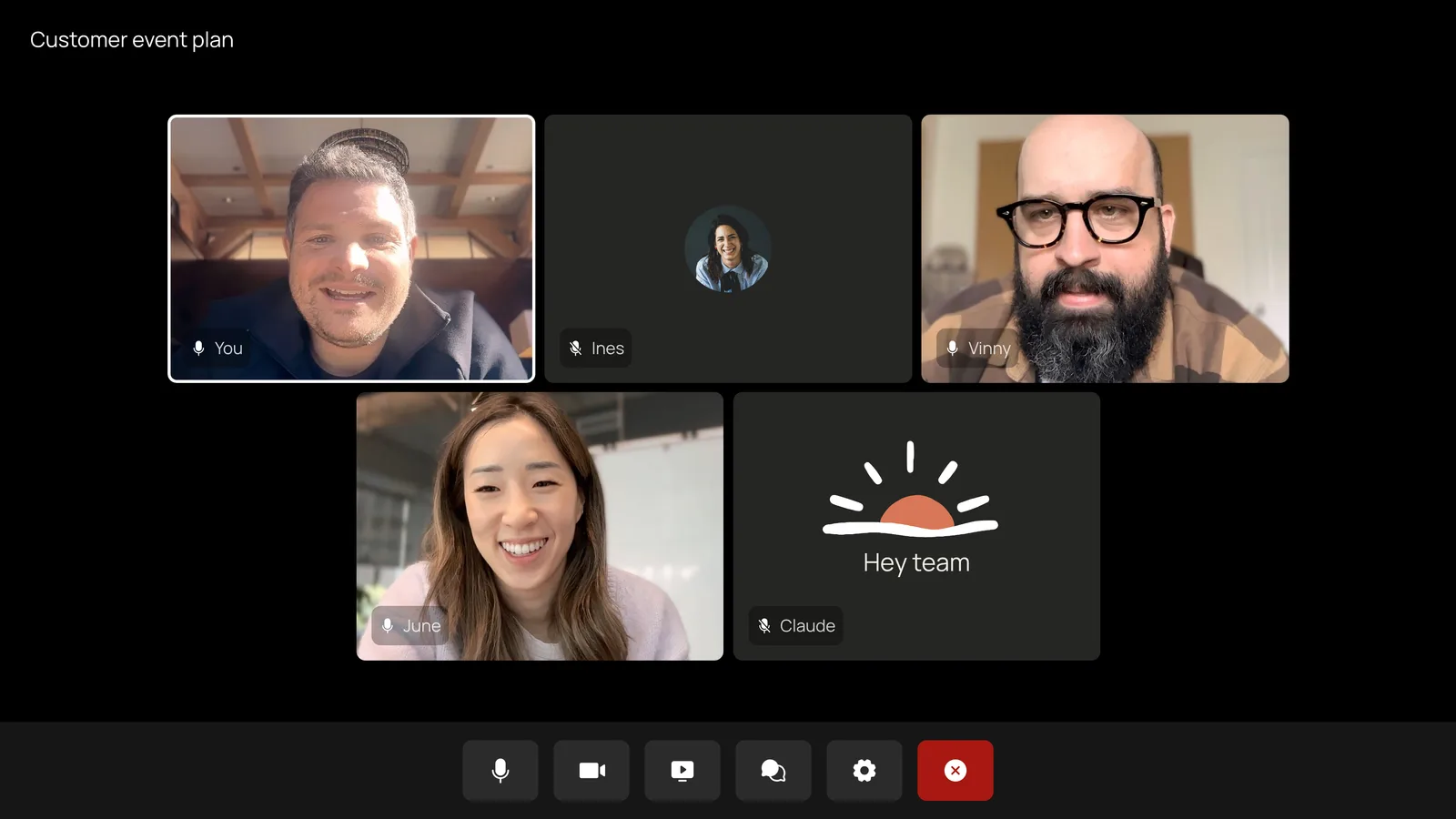
Image: Anthropic, Introducing Claude Meetings, now in beta, 12 November 2026.
During the call, Claude does four things (Claude Help Center):
- Takes notes. Claude produces a transcript, a summary and action items, "so no one on the call has to". Colleagues on the invite get an email afterwards with a link to the meeting page.
- Answers questions. You say "Claude" and ask out loud, or type in the Meet chat. By default Claude answers in writing in that chat.
- Builds with you. On request Claude creates a doc, whiteboard, slide deck or other artifact, attached to the meeting page. Anyone from your organisation on the invite can edit it straight away.
- Uses your systems. Claude can use your connected tools, such as sending a Slack message or looking up last year's figures. It does so with the permissions of the person asking. It asks the first time; when someone asks out loud, it currently checks each time who is speaking.
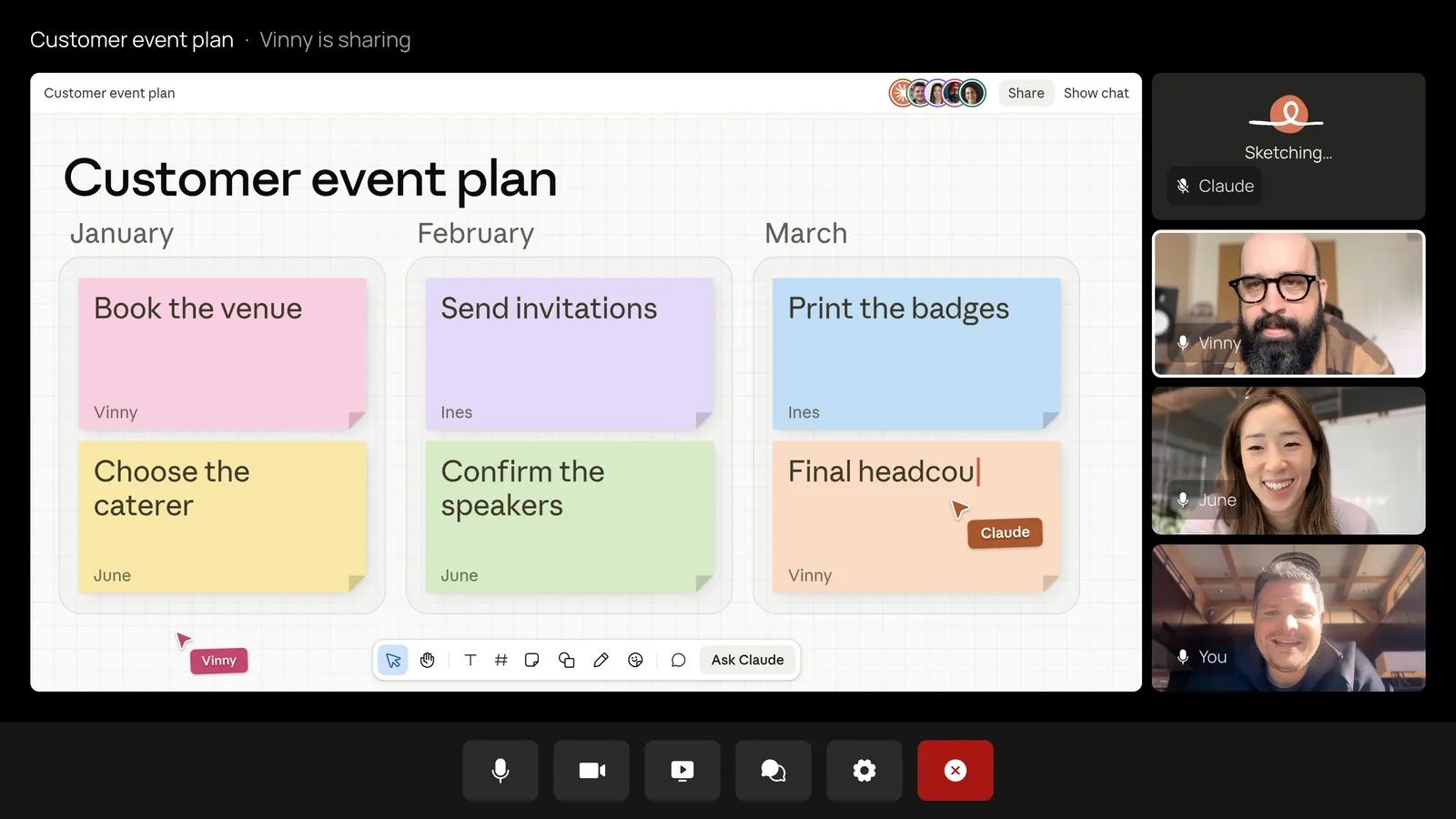
Image: Anthropic, Introducing Claude Meetings, now in beta, 12 November 2026.
Claude usually joins without asking. If it does ask for access, the host has to let it in; if the host declines, Claude does not try that call again unless someone adds it again. When it joins, Claude posts a notice and a link to the meeting page in the Meet chat. You stay in control. Claude's tile shows what it is doing. You pause it by asking it to stop listening or from the meeting page; you resume only from the meeting page. You can also ask Claude to leave or choose "Remove Claude" on the meeting page, and it stays for up to eight hours. Later you can ask Claude in a normal chat about meetings you attended. Anthropic says it is working with Gong, Fireflies.ai, Otter, Granola, Attention and Plaud so you can send transcripts to those tools.
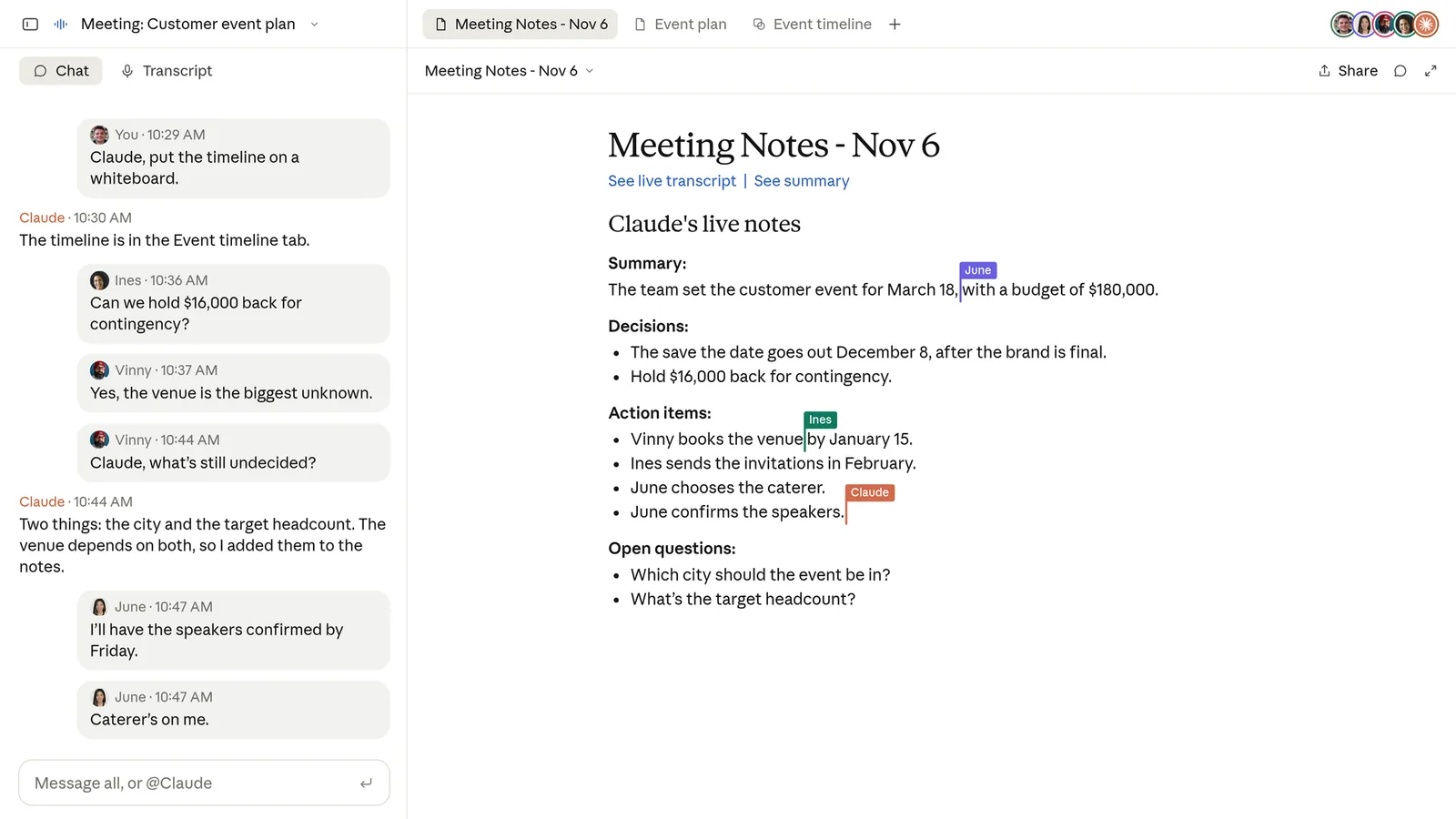
Image: Anthropic, Introducing Claude Meetings, now in beta, 12 November 2026.
Who can use it, and what does it cost?
| Item | Claude Team | Claude Enterprise |
|---|---|---|
| Claude Meetings | on by default | off by default, admin switches on |
| Calls with outside guests | allowed by default | internal only by default |
| Video platform | Google Meet | Google Meet |
Source: Claude Help Center, accessed 16 November 2026.
On a Pro or Max plan you will not see Claude Meetings. Not sure which plan you have? Open claude.ai/admin-settings: if you are told you do not have access to the organisation settings, you are not on Team or Enterprise. If your calendar is in Outlook, Claude Meetings does not work for you yet: it only works with Google Calendar and Google Meet. During the beta it is also not available to organisations with zero data retention, the HIPAA configuration or customer-managed encryption keys.
Notes, transcripts and answers that do not use connected tools are included on Team and Enterprise. Docs and whiteboards made in a meeting are free until 10 February 2027. When Claude uses your connected tools, that counts towards your plan's usage (Claude Help Center).
How do you switch Claude Meetings on?
As a user, in the browser or in Claude Desktop (Claude Help Center):
- Go to Meetings in Claude.
- Connect your Google Calendar. An admin must enable Google Calendar for the organisation first.
- Pick a meeting in your calendar and click Add Claude.
- To have Claude join automatically, go to Settings › Capabilities › Meetings › Auto-join and choose all meetings or all except one-to-ones. Each person chooses this themselves; an admin cannot switch it on for you.
As an admin you will find three settings under Organization settings › Products › Claude Meetings (beta):
- Claude Meetings: Off (the default on Enterprise), On for roles that include Meetings (through custom roles, on Enterprise) or On for everyone (the default on Team).
- Meetings with external guests: Internal meetings only (the default on Enterprise) or allowed (the default on Team).
- Members' connectors in meetings: controls whether Claude may use members' connected tools during a meeting.
What should you arrange before Claude joins?
Anthropic puts the responsibility squarely on you: "Before you add Claude or turn on auto-join, make sure everyone on your calls is OK with being transcribed." In Europe that is simply GDPR. A meeting transcript contains personal data, so you need a legal basis, you must be transparent towards the people involved and you should not process more than the purpose requires. For algorithmic systems processing personal data, the Dutch data protection authority also points to a DPIA (AP, in Dutch).
In practice, it comes down to five agreements:
- Decide who may switch it on. On Claude Team, Meetings is already on for everyone. Check under Organization settings › Products › Claude Meetings (beta) whether that is what you want. On Enterprise, enable it for a small group with custom roles.
- Inform participants beforehand. Claude joins as a visible participant and posts a notice in the chat, but anyone who joins late or does not read the chat will miss it. Say in the invite that Claude will be there and why, and agree that people can object.
- Choose your line on outside guests. According to the help article, Claude may join calls with outside guests by default on Team; on Enterprise it is internal only by default. (The announcement says in general terms that Claude stays out by default; go by the help article for your own setting and check it.) When it is off, Claude stays out if someone from outside is invited and leaves if they join later, including another company's note-taker bot. If Claude stays, what guests say ends up in the notes and transcript, while they cannot see the meeting page. For calls with clients, candidates or suppliers we recommend switching this off until you have a clear agreement.
- Record where the transcript lives. Claude keeps a transcript, summary and descriptions of what was on screen, not audio. How long Anthropic keeps transcripts and where they are stored is not stated in the announcement or the help article. Ask before you let it take notes in sensitive meetings, and include it in your retention policy. How to approach that is covered in Retaining AI conversations.
- Agree which tools Claude may use. The setting for members' connectors in meetings controls whether Claude may work in your systems during a call. An answer in the Meet chat is visible to everyone on the call; be careful what you look up when outsiders are watching.
Does it work in Dutch and in Teams?
That is the biggest limitation for Dutch organisations. Claude Meetings currently works with Google Meet only; other platforms are "coming soon" according to Anthropic. A spokesperson mentioned Microsoft Teams to Computerworld, but that is not in Anthropic's own sources and there is no date (Computerworld). If your organisation meets in Teams, or your calendar is in Outlook, you cannot use it yet.
Anthropic says nothing about languages. For comparison: Google Meet's own transcription does not support Dutch (Google Meet Help). What that means for Claude is not in the sources. So test how well Claude transcribes a Dutch meeting yourself: hold a short internal meeting and read the transcript before you rely on it.
How does it compare with other AI note takers?
| Route | Strength | Watch out for |
|---|---|---|
| Claude Meetings | Builds with you during the call, uses your tools | Meet only, languages unknown, beta |
| Copilot in Teams | Works in Teams, transcribes Dutch | Requires a Copilot licence |
| Standalone note taker, such as Fireflies or Otter | Works across platforms | Another vendor and processor |
If you already use Teams and Microsoft 365, Copilot in Teams is the more obvious choice; Teams also transcribes Dutch. If you work with Google Workspace and Claude, Claude Meetings is interesting because the notes land directly in Claude, where you can keep working with them. Which routes keep your data in the EU is covered in Transcribing Dutch audio with AI. If you want to take notes without an extra tool first, three approaches are in Meeting notes with AI.
How do you start?
Start small and internal. Pick one recurring meeting without outside guests, such as a weekly planning session, and let Claude join it for four weeks. Keep it off for the rest of the organisation until that trial is done. Afterwards look at three things: are the action items right, how much time does it save on writing up, and are participants comfortable with it. Only then decide whether and for whom to switch it on more widely.
What does this mean for your organisation?
Claude Meetings shows where AI at work is heading: from a tool you ask something afterwards to a colleague who takes part while the work happens. That saves time, but it calls for agreements you probably do not have yet: who may invite an AI, what gets recorded, and what you do with what was said. If you use Claude Team, check the setting today, because it is already on. Everything else that changed in Claude, ChatGPT, Copilot and Gemini this month is on a timeline in AI news November 2026. More on the new whiteboards and spreadsheets in Claude is in Claude Sheets, Whiteboards and Data.
When can you ignore this?
If you use Claude Pro, Max or no Claude at all, nothing changes. On Claude Enterprise, Meetings stays off until an admin switches it on. And if your organisation works with Outlook and Teams or with Zoom, Claude cannot join yet. If you do use Claude Team, it is already on for everyone: now is the time to review the settings.
Sources
- Anthropic, Introducing Claude Meetings, now in beta, 12 November 2026
- Claude Help Center, Use Claude Meetings, accessed 16 November 2026
- Autoriteit Persoonsgegevens, Regels bij gebruik van AI & algoritmes (Dutch), accessed 16 November 2026
- Computerworld, Anthropic targets workplace collaboration with Claude Meetings, 11 November 2026
- Google Meet Help, Use Transcripts with Google Meet, accessed 16 November 2026